



Below we will see how you can add Disk Cleanup to the menu you see when you right-click on Windows 10 for easier access to the function.
Windows uses many different things archives, μερικά από τα οποία είναι προσωρινά. Τα Windows 10 μπορούν να αδειάζουν αυτά το “σκουπίδια”, εμποδίζοντας έτσι το δίσκο να γεμίσει με περιττό περιεχόμενο. Ωστόσο, μερικές φορές οι δίσκοι γεμίζουν και θα πρέπει να τρέξετε την εκκαθάριση δίσκου.
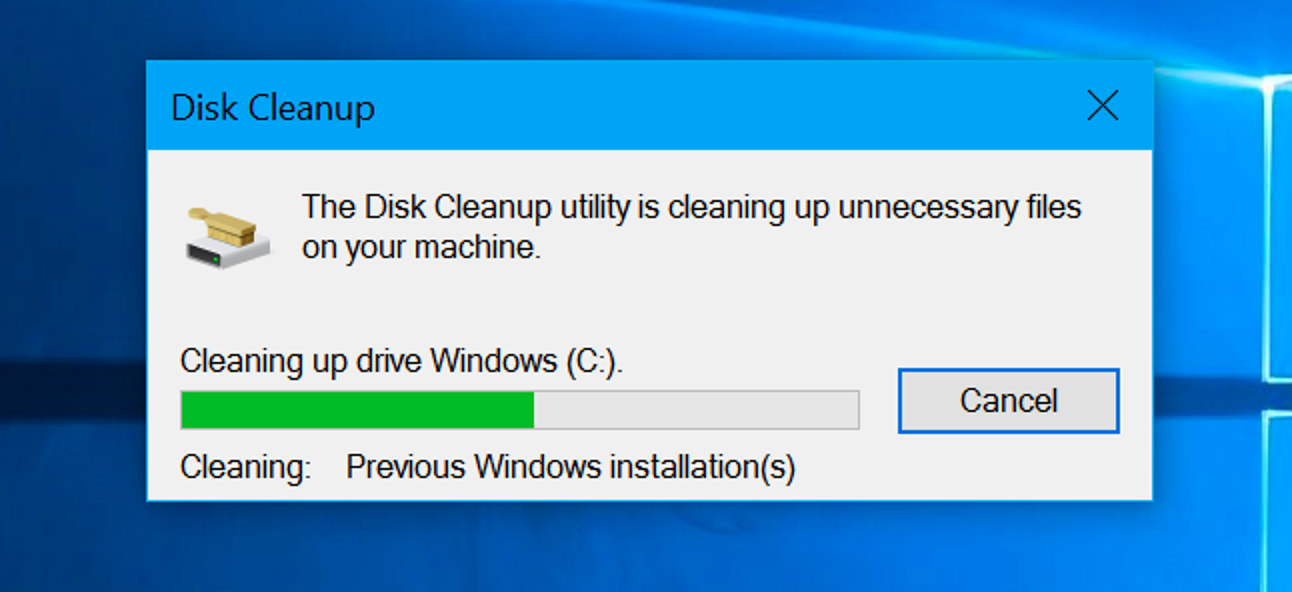
There are several ways to clean your disk. One of them is Disk Cleanup that we will add to the Explorer context menu. This will save you a few clicks as you will not have to look for the properties of the disk.
To make the item appear in the menu you will need to make a small change to the register of the system. To do this, below you will find two registry files ready that can add or remove the “Cleanup” item from the menu.
You need one account with administrator rights to complete the process.
- Download the registry files from here
- Unzip the contents to any folder.
- Run the 'Add cleanup to the menu.reg' file and confirm the changes to the Windows registry.
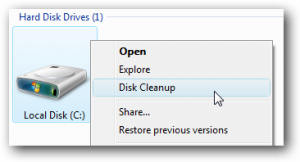
You will not need to redomovement of your computer. All changes will appear immediately in the Explorer menu. Just right-click on the disk and select Cleanup.
Remove the "Cleanup" item from the disc menu
Subtraction is done in the same way as the addition. Just run the other .reg file you downloaded from the instructions above. Run the "Remove Cleanup from menu.reg" file and confirm the changes.
Caution: We recommend that you carefully check the registry files you download from the Internet to make sure they are secure. To do this, right-click on the .reg file and select Modify. This command will open the notepad file to read what it contains. We do not recommend running registry files, dynamic link libraries (DLLs), or installation files from unknown sources.