

Depending on your habits and preferences, some of your applications may start automatically when you start your computer. However, if you have too many applications set to open with Windows , things will not go well, especially if you are using a lower-performance computer.
What's wrong? The first minute or two after you log in to your system, Windows seems unreasonably slow. Of course, it's annoying to see many applications "unfreeze" one by one. 
Well, you have two options. The obvious solution is to reduce the number of applications that start automatically with Windows. But it's not the only solution. Another approach is to adjust the timing of auto-start. For example, you can set the most important applications to open immediately, while those that you don't need immediately to start a few minutes later. This way, you better distribute the load on system resources, which can provide a smoother user experience.
How to delay app launch in Windows 11
Although Windows does not have a default setting for delaying application startup, you can do so through the Task Scheduler.
Let's see how:
- From Settings > Apps > Startup Apps > Startup) disable it application whose launch you want to delay. This is important, because otherwise Windows will start the application normally. Then the "Task Scheduler" will start it later.
- Press the Win + R keys together, and type taskschd.msc. Press Enter to open the “Task Scheduler”.
- In the right pane, click “Create Task.” Give the task a name that reminds you of which application it refers to — especially useful if you want to apply this process to multiple programs.
- On the “Triggers” tab, click “New.” In the “Begin the task” field, select “At log on.”
- Enable the “Delay task for” option and set the amount of time you want Windows to wait before launching the application. For applications that aren’t absolutely necessary, a minute or two is usually enough for Windows to finish loading the desktop and background services.
- On the “Actions” tab and click “New”.
- Set the action to “Start a program,” locate the application’s executable file, and select it. If you’re not sure where the executable file is located, you can usually find it in the application’s shortcut properties or in its installation folder.
- Click “OK” to save the task.
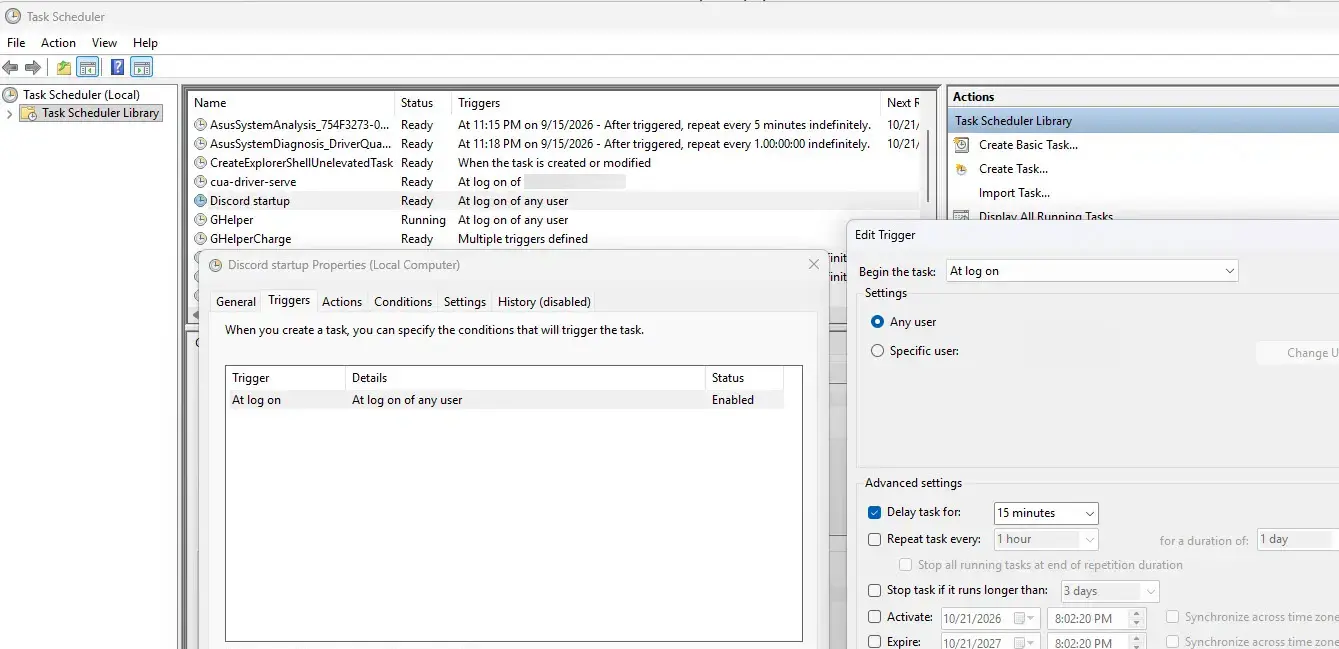 The next time you log in, Windows will wait for the amount of time you selected before starting that application.
You can repeat the same process for other apps that launch at startup, adjusting their time intervals as you wish. For example, you can set a chat app to launch after 30 seconds, a game launcher after two minutes, and an app you rarely use after 30 minutes. This way, the programs will still start automatically, but they won't all compete for available system resources.


0 reviews
iGuRu.gr