

Floating and transparent taskbar, side-mounted taskbar, Start menu with just your apps, Mica effects on every program, and a different system font. Microsoft does n't allow them. Here's how to do them, safely and with full restore capability.
Windows 11 operating system on PC screen. Windows 11 is the latest major release of Microsoft's Windows NT.
Windows 11 Settings lets you change colors, background, and the position of icons on the taskbar. That's where it stops. The taskbar doesn't move to the side, the "Recommended" section of Start doesn't disappear completely, and the system font doesn't change. With the tools and registry settings in this guide, all of that is done.
Before you start
- Restore point: open it PowerShell as administrator and run the command below. If you don't like something, you can return to the previous state from "System Restore".
Checkpoint-Computer -Description "Πριν τη μεταμόρφωση" -RestorePointType MODIFY_SETTINGS
- Windhawk: most tweaks are done with Windhawk, a free, open-source program that applies small modifications ("mods") to Windows while it's running, without changing any system files. Each mod is disabled with a click and its source code is public. Download it only from its official page, windhawk.net.
- Major updates: After a major Windows update, a mod may take a few days to be updated by its creator. Windhawk updates mods automatically.
Part 1: Windhawk
Installation and how you add a mod
1. Download Windhawk from windhawk.net and install it.
2. Open it and tap Explore to see the available mods.
3. Search for the mod with the name we mention in each section, open it and press Install.
4. In the Settings tab of the mod, you configure the appearance; the changes are applied once you click Save settings.
5. To undo it: Disable (temporarily) or Uninstall (permanently). The change goes away immediately.
1. Taskbar like the macOS Dock
With the mod "Windows 11 Taskbar Styler" the taskbar becomes floating, transparent and rounded, like the macOS Dock, or takes on a completely different style. In the mod settings, in the field Theme, choose one of the ready-made themes (e.g. a "Dock" or "Translucent" theme). The available themes, with images, are shown on the mod's page in Windhawk.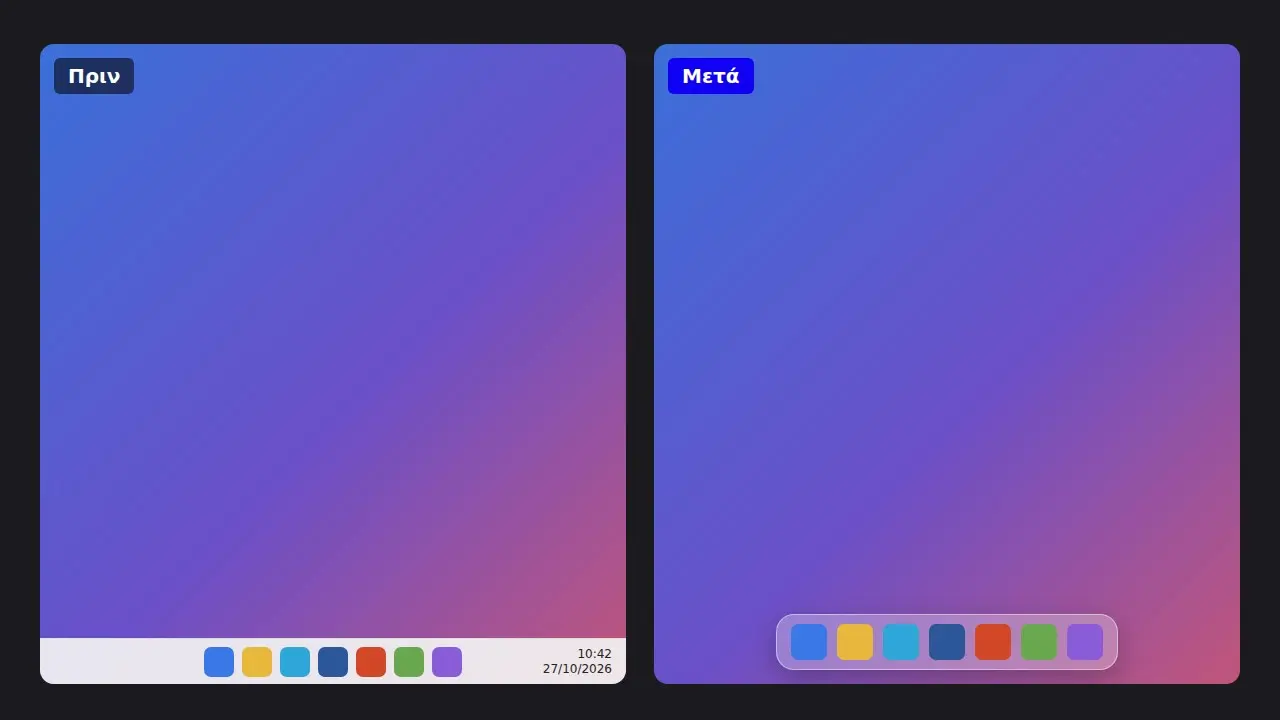
The taskbar before and after, in Dock style (illustration).
2. Vertical taskbar
Windows 10 allowed the taskbar to be on the side; Windows 11 doesn't. The "Vertical Taskbar for Windows 11" mod brings it back to the left or right. Perfect for widescreen displays, where vertical space is more valuable than horizontal.
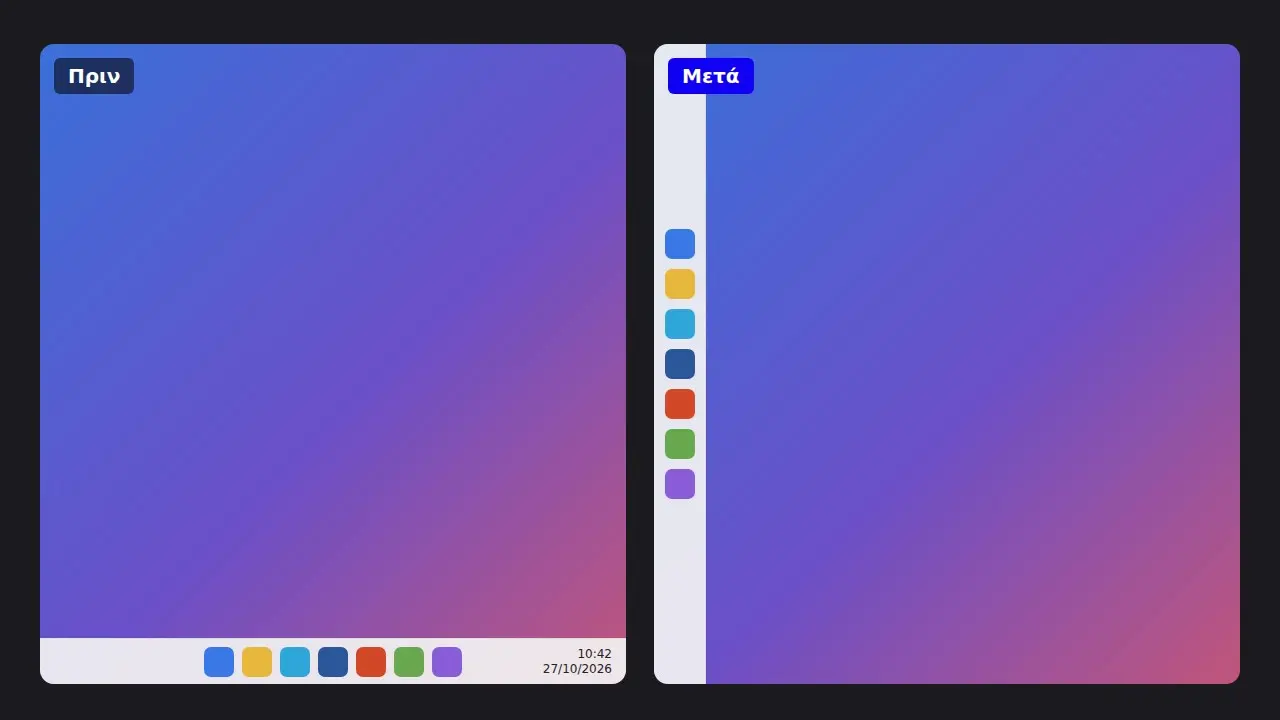
The taskbar on the side of the screen (illustration).
3. Start Menu without "Suggested"
The “Suggested” section may be gone from Settings, but its space remains. With the “Windows 11 Start Menu Styler” mod , you choose a theme that removes it entirely, so the menu is filled with your pinned apps. The same mod also changes the menu’s colors, sizes, and rounding.
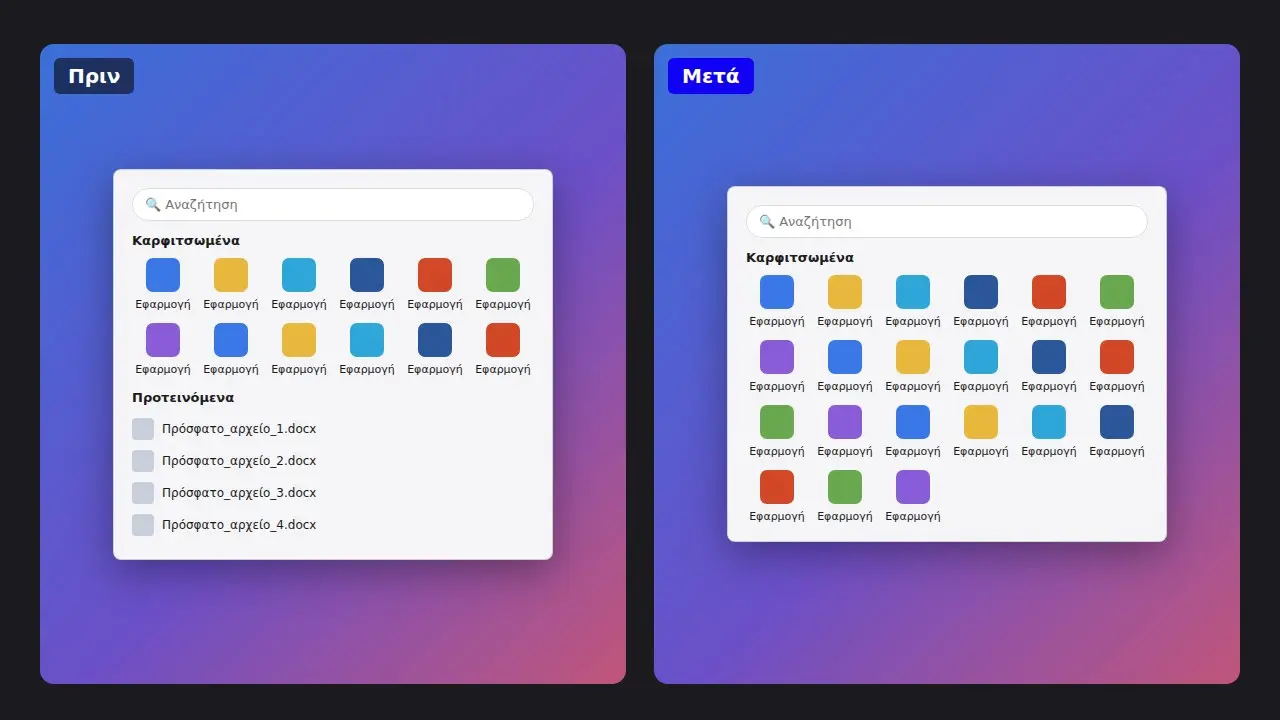
The Start menu with and without the "Recommended" section (depicted).
4. Thinner taskbar and smaller icons
With the "Taskbar height and icon size" mod you set the taskbar height and icon size in pixels, something that Settings doesn't allow. For example, a height of 32 and icons of 20 give a compact bar that saves space on small laptop screens.
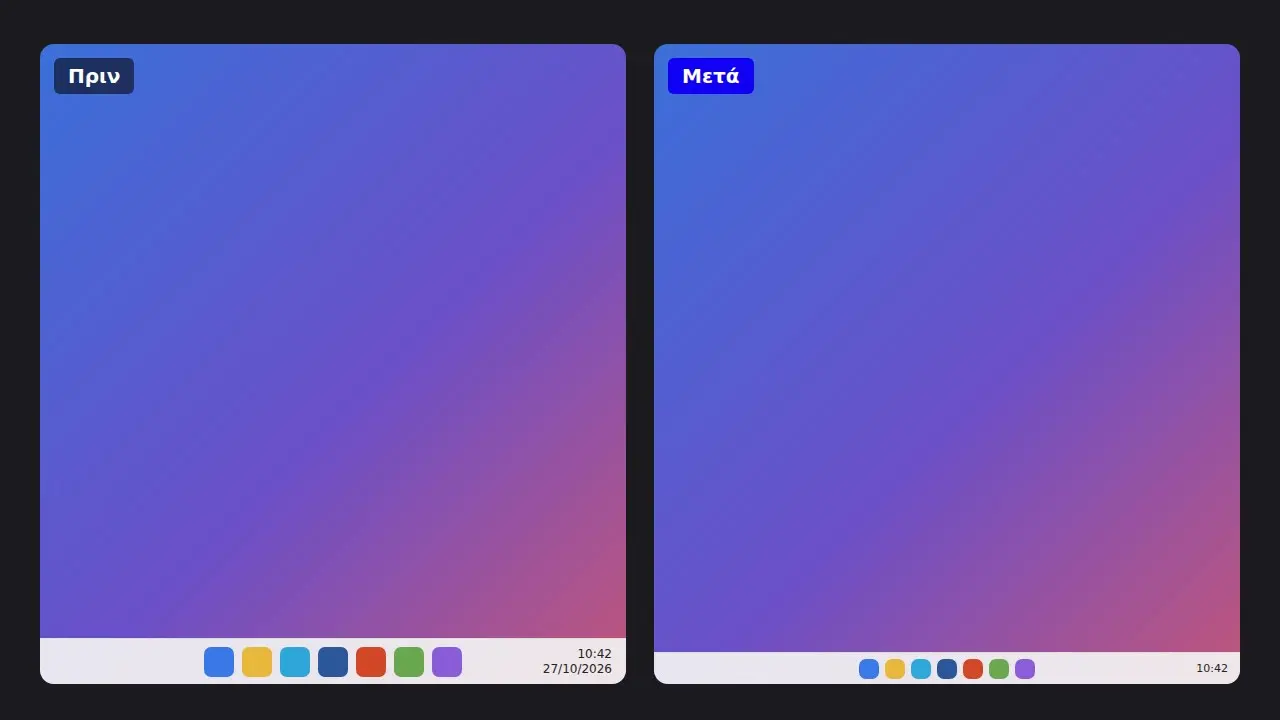
Normal and compact taskbar (display).
Some more useful mods: " Taskbar Clock Customization" adds the day of the week, seconds, or your own text to the clock, and "Better file sizes in Explorer details" displays the size of folders in File Explorer.
Part 2: Mica in every program
5. Mica For Everyone
New Windows 11 apps have a distinctive semi-transparent Mica effect , while classic apps are left with opaque title bars. The free, open-source Mica For Everyone applies Mica or Acrylic to each app, with rules per app. Download it from the project's GitHub page (search for "Mica For Everyone"). To undo it, close or uninstall the app.
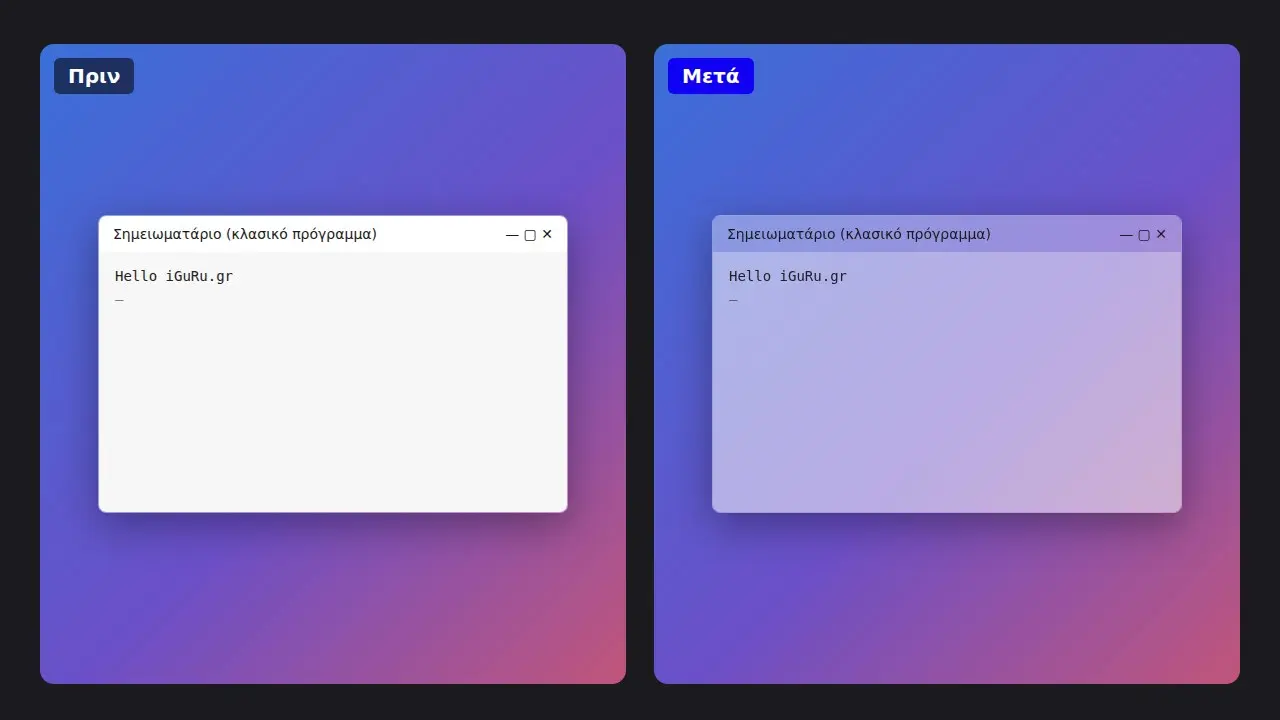
Classic program without and with Mica effect (visualization).
Part 3: Registry, without additional programs
6. Change the system font
Windows does not offer any settings for the system font. With the following registry file, Segoe UI is replaced by a font of your choice in dialog boxes, menus and classic programs. In the example we use Tahoma , which is present on every computer and supports Greek. The new Windows 11 components (Start menu, Settings) use Segoe UI Variable and are not affected.
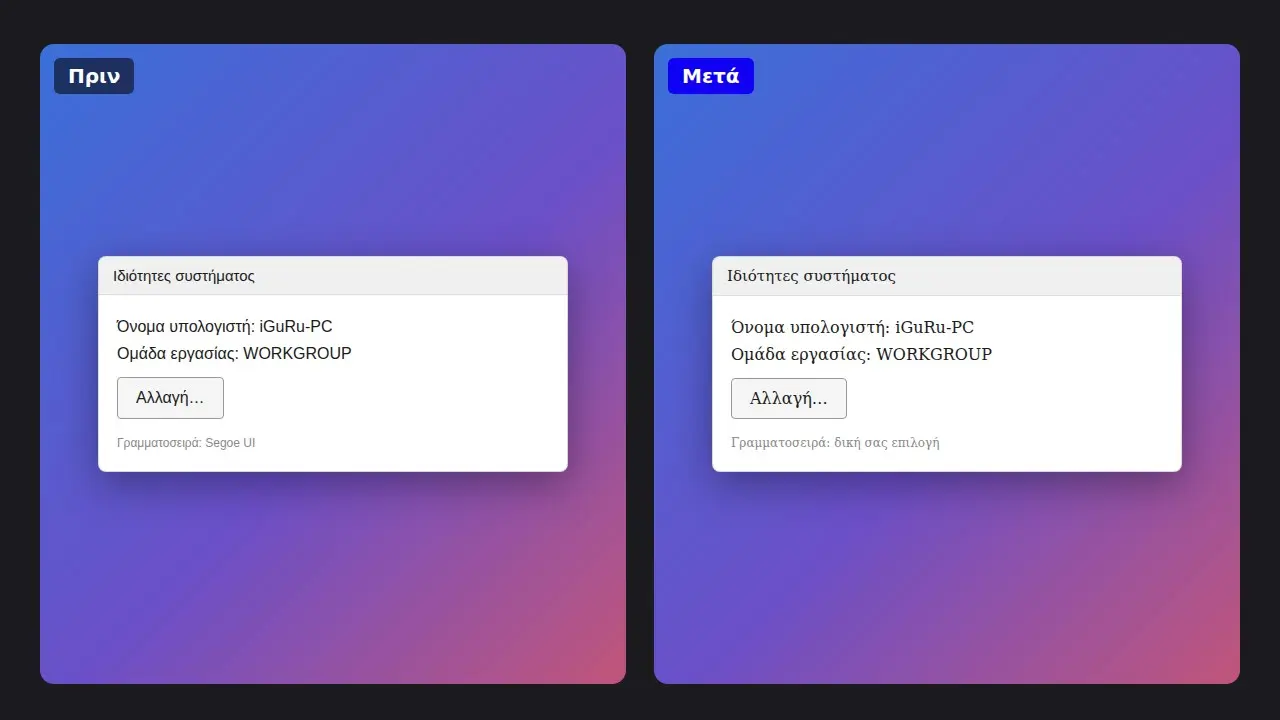
Dialog box with the default and your own font (depiction).
1. Backup (cmd as administrator):
reg export "HKLM\SOFTWARE\Microsoft\Windows NT\CurrentVersion\Fonts" "%USERPROFILE%\Desktop\fonts-backup.reg"
2. Application: save as "font.reg", double-click and restart:
Windows Registry Editor Version 5.00

[HKEY_LOCAL_MACHINE\SOFTWARE\Microsoft\Windows NT\CurrentVersion\Fonts]
"Segoe UI (TrueType)"=""
"Segoe UI Black (TrueType)"=""
"Segoe UI Black Italic (TrueType)"=""
"Segoe UI Bold (TrueType)"=""
"Segoe UI Bold Italic (TrueType)"=""
"Segoe UI Italic (TrueType)"=""
"Segoe UI Light (TrueType)"=""
"Segoe UI Light Italic (TrueType)"=""
"Segoe UI Semibold (TrueType)"=""
"Segoe UI Semibold Italic (TrueType)"=""
"Segoe UI Semilight (TrueType)"=""
"Segoe UI Semilight Italic (TrueType)"=""

[HKEY_LOCAL_MACHINE\SOFTWARE\Microsoft\Windows NT\CurrentVersion\FontSubstitutes]
"Segoe UI"="Tahoma"
For another font, change “Tahoma” in the last line with the exact name of an installed font with Greek characters . Without Greek, the window texts will be displayed in squares.
Undo: save as "font-undo.reg", double click and reboot:
Windows Registry Editor Version 5.00

[HKEY_LOCAL_MACHINE\SOFTWARE\Microsoft\Windows NT\CurrentVersion\Fonts]
"Segoe UI (TrueType)"="segoeui.ttf"
"Segoe UI Black (TrueType)"="seguibl.ttf"
"Segoe UI Black Italic (TrueType)"="seguibli.ttf"
"Segoe UI Bold (TrueType)"="segoeuib.ttf"
"Segoe UI Bold Italic (TrueType)"="segoeuiz.ttf"
"Segoe UI Italic (TrueType)"="segoeuii.ttf"
"Segoe UI Light (TrueType)"="segoeuil.ttf"
"Segoe UI Light Italic (TrueType)"="seguili.ttf"
"Segoe UI Semibold (TrueType)"="seguisb.ttf"
"Segoe UI Semibold Italic (TrueType)"="seguisbi.ttf"
"Segoe UI Semilight (TrueType)"="segoeuisl.ttf"
"Segoe UI Semilight Italic (TrueType)"="seguisli.ttf"

[HKEY_LOCAL_MACHINE\SOFTWARE\Microsoft\Windows NT\CurrentVersion\FontSubstitutes]
"Segoe UI"=-
7. Color in inactive windows too
When you enable "Show accent color in title bars" (Settings → Personalization → Colors), only the active window gets color; the rest remain white. With this setting you also set a color for inactive ones, e.g. dark gray, so that they stand out from their content.
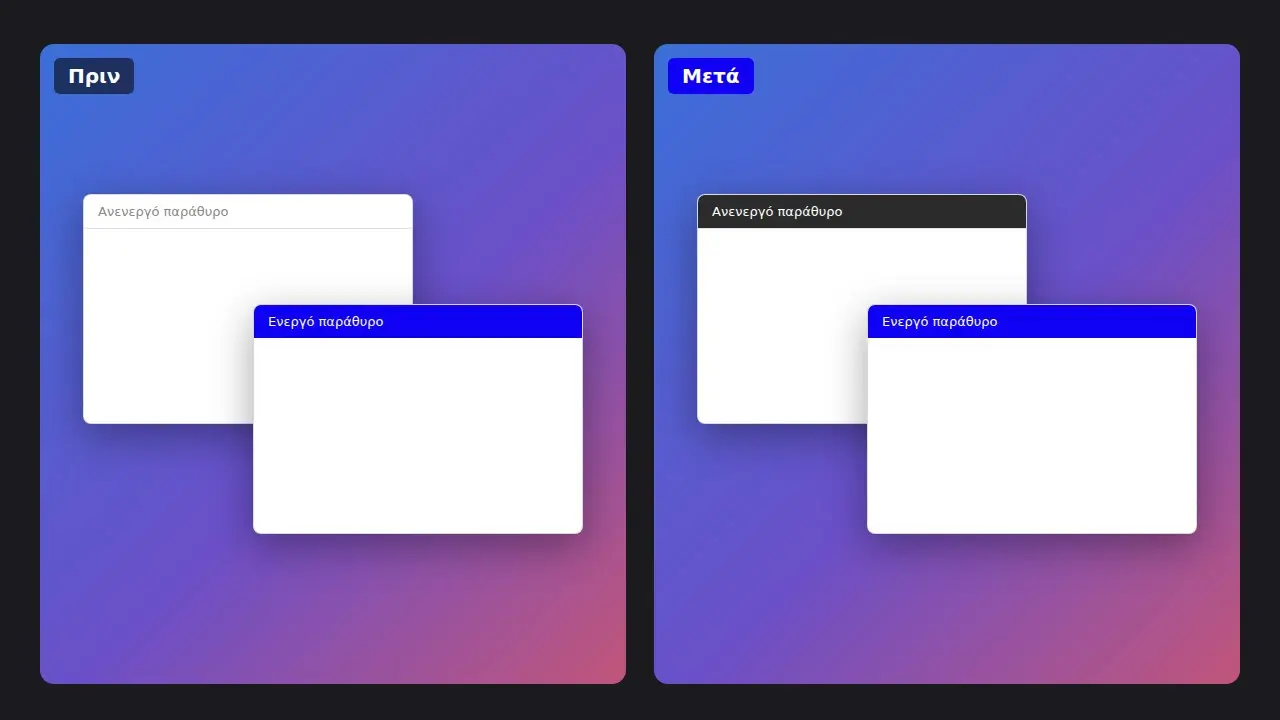
Inactive window without and with its own color (illustration).
Application (cmd, without administrator rights):
reg add "HKCU\Software\Microsoft\Windows\DWM" /v AccentColorInactive /t REG_DWORD /d 0xff2b2b2b /fUndo:
reg delete "HKCU\Software\Microsoft\Windows\DWM" /v AccentColorInactive /fThe value is written as 0xff and then the colors in reverse order : blue, green, red. Thus, the color #1000F4 of iGuRu.gr is written as 0xfff40010 . The change is visible in the next window that loses focus.
Briefly
| Change | With what? | Undo |
| 1. Taskbar like Dock | Windhawk: Windows 11 Taskbar Styler | Disable or Uninstall the mod |
| 2. Vertical taskbar | Windhawk: Vertical Taskbar for Windows 11 | Disable or Uninstall the mod |
| 3. Starting without "Suggested" | Windhawk: Windows 11 Start Menu Styler | Disable or Uninstall the mod |
| 4. Compact taskbar | Windhawk: Taskbar height and icon size | Disable or Uninstall the mod |
| 5. Mica everywhere | Mica For Everyone | Close or uninstall |
| 6. System font | Registry file | font-undo.reg and reboot |
| 7. Color of inactive windows | Registry command | reg delete |
None of the above changes system files: Windhawk mods only apply while they are active, and registry changes are completely undone. Start with one mod at a time, so if you don't like something you'll know right away which one is causing it.

0 reviews
iGuRu.gr