

You've probably experienced more than once that you can't delete, rename, or move a file because another application is using it. You can easily solve this by finding and closing the application that is holding the file. However, the file is usually held by a process running in the background, which makes it very difficult to locate.
Restarting your computer usually solves the problem, but you may not want to do that if you're in the middle of a task. Windows provides a way to locate the process and end it without restarting your computer. If you use PowerToys , there's an even more convenient option.
The built-in method uses the Resource Monitor, which can look for open files ( file handles) to show which process currently has the file open.
How to use it:
Press Win + R, type resmon and press Enter.
Open the CPU tab.
In the Associated Handles section, type part of the file name in the search box.
Wait for the search in Resource Monitor to complete.
Check the process name next to the corresponding result.
Once you have identified the process that is holding the file, close the corresponding application normally and try deleting the file again.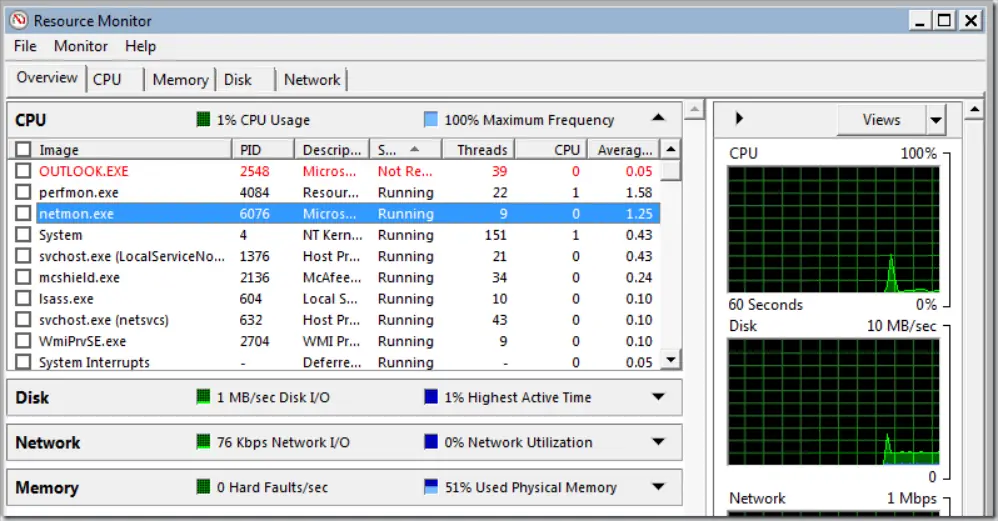
If you also see explorer.exe in the results, I wouldn't recommend simply quitting File Explorer just to unlock the file. Most of the time, File Explorer doesn't prevent a file from being deleted, so it's likely that another process on the list is to blame. If you really suspect File Explorer, you should first close any Explorer windows that might be using the file. If that doesn't work, you can restart explorer.exe through Task Manager , which is safer than accidentally killing shell processes.
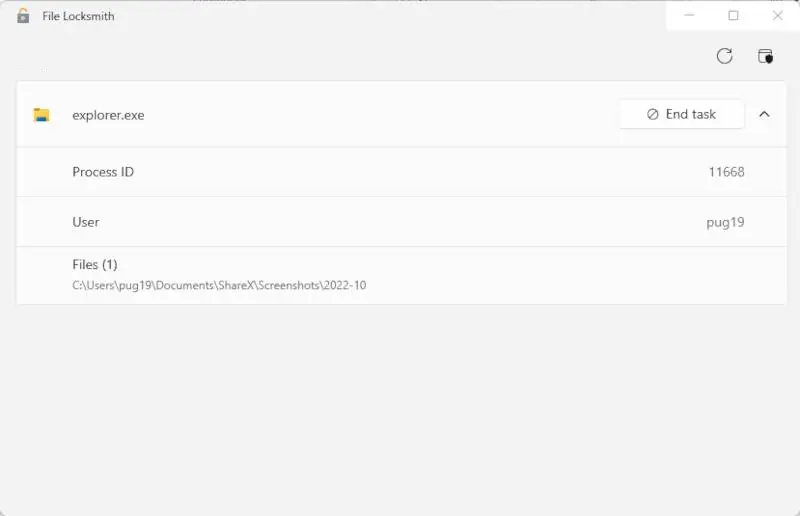
This is where PowerToys comes in which is much easier for this job as it offers a simpler and faster option called File Locksmith. File Locksmith is specifically designed to show which processes are using a selected file or folder.
How to use it:
Open PowerToys.
Make sure File Locksmith is enabled.
Right-click the file or folder that you cannot delete.
Select “Show more options” if you are using the newer Windows 11 context menu.
Click “Unlock with File Locksmith”.
PowerToys will display the processes that are using the file.
From there, you can close the problematic application normally or use the end process option, as long as you know it's safe to do so.
If you don't have PowerToys installed on your computer, you can download it from the Microsoft Store or from its official GitHub page.
File Locksmith is a cleaner method, as it directly checks the selected file instead of forcing you to manually search through system handles. However, Resource Monitor is still useful, especially if you don't want to install any additional software.
Whichever method you use, the important thing is not to start killing random processes just because they appear in the list. Identify the specific process, properly close the corresponding application, and try deleting the file again.



0 reviews
iGuRu.gr