

If you perform an in-place upgrade from an earlier version in Windows 11 26H2, the installer keeps a copy of the previous installation, in case something goes wrong and you need to revert to the previous version. Windows they store this backup in the "Windows.old" folder on the system drive.
While these files will allow you to revert to the previous version if necessary, they take up significant storage space after the upgrade is complete. On devices with limited storage, the extra files can be a problem.
If you've already upgraded to Windows 11 26H2 and need to free up space, Windows 11 has options to securely delete files from your previous installation. Depending on your previous installation and configuration, this process can free up 20 GB or more of storage space.
Below we will see the steps for deleting the previous installation files after upgrading to Windows 11 26H2 and recovering storage space.
To reclaim storage space after installing a new version of Windows 11, follow these steps:
Open Settings in Windows 11 and click System.
Click the Storage page, and then click the Temporary files setting.
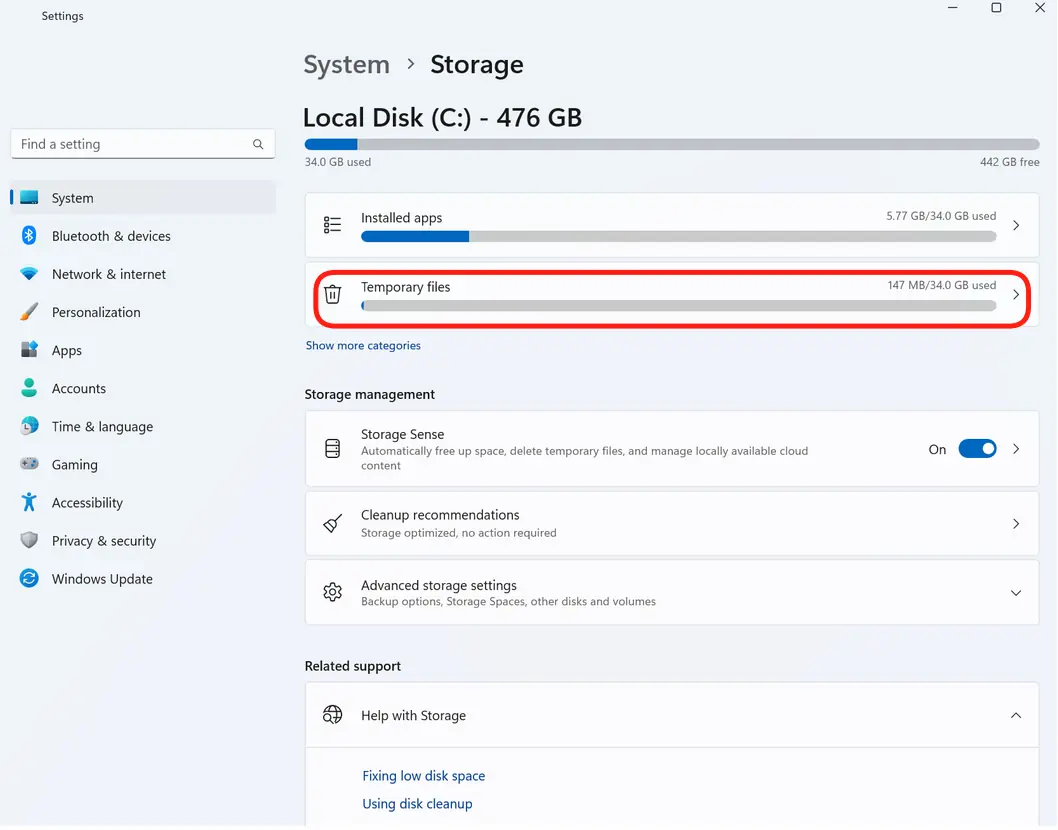
Click the "Cleanup system files" button.
Select "Previous Windows Installation(s)" from the list.
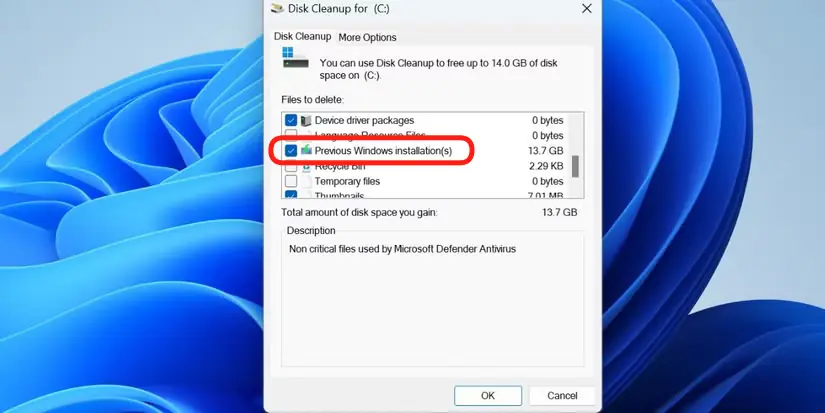
Deselect the items you do not want to delete, and click the "Remove files" button.
Once you complete the steps, the backup of the previous installation files will be deleted from your computer, freeing up several gigabytes of space.
One thing to note is that deleting these files will prevent you from going back to a previous version of the operating system. However, the system will automatically delete these files after 10 days. If, after deleting the previous installation files, the device still does not have enough space, you will need to follow other troubleshooting steps to free up space in Windows 11.
Finally, the system creates a copy of the previous installation only during an in-place upgrade, a process that reinstalls the operating system.



0 reviews
iGuRu.gr