



The Windows 10 δεν έρχονται με την επιλογή “Πρόσφατα στοιχεία” στο παράθυρο πλοήγησης του File Explorer of Windows 10. Today we will see how you can add it.
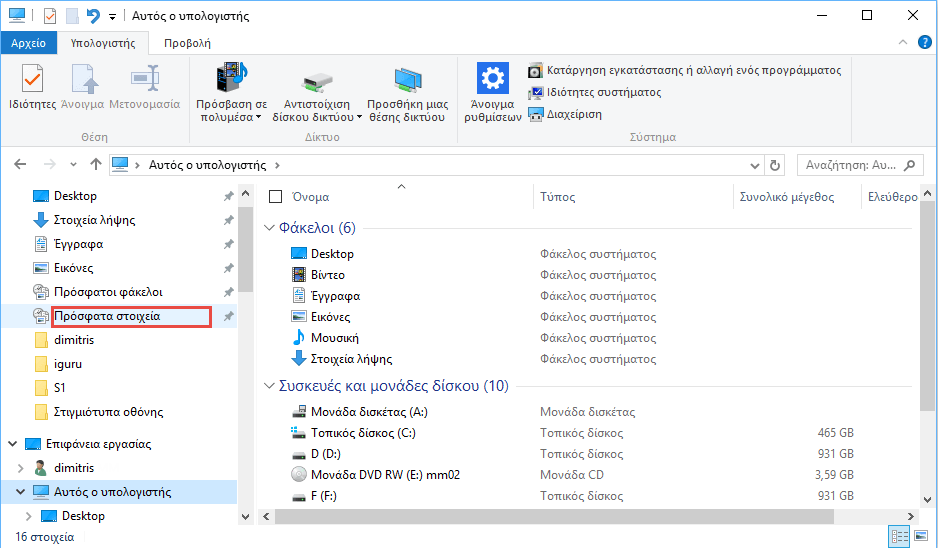
We remind you that we have published a corresponding article with the addition of "Recent Folders" in File Explorer of Windows 10. We recommend that you add this by following the instructions in this article:
How to add "recent folders" to Windows 10 File Explorer
To add the New Items to the left window of the File Exploser of Windows 10, you should do the following:
1.> Press the Win + R keys on the keyboard together to open the Run dialog box. Type the following in the Run box:
shell: Recently
Press Enter.
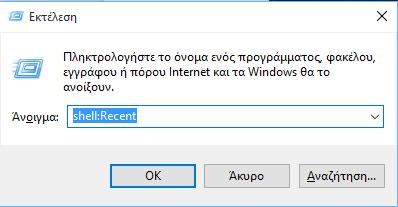
Note: The above command is a special one shell command. This will take you directly to the Recent Data folder!
2.> The Recent Items folder will open in File Explorer. Right-click on the "Quick Access" item at the top left of the window and select "Pin the current folder to Quick Access" from the pop-up menu.
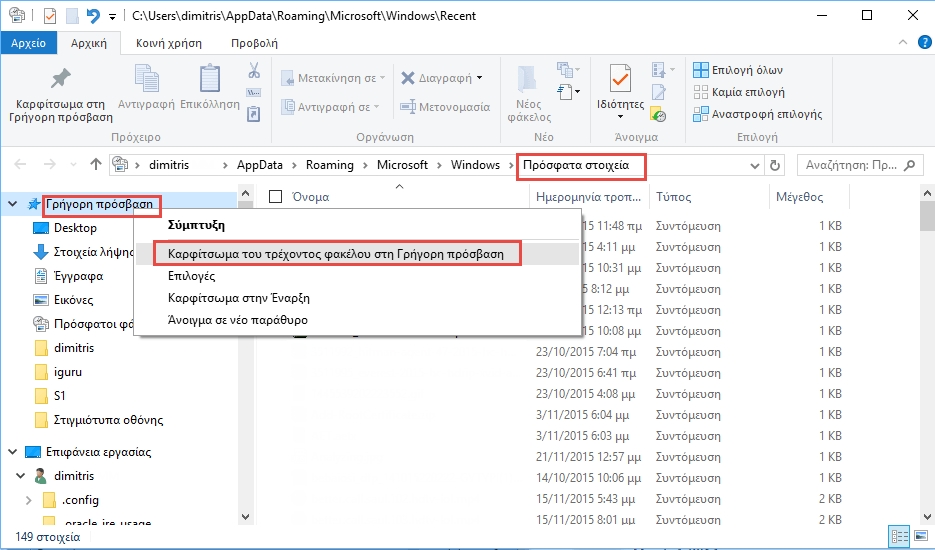
That's it. You now have the Recent Items in the left window of the File Exploser of Windows 10. This trick works in Windows 10 as well as the TH2 version (1511 Version). It may stop working later if Microsoft decides in the future to change File Exploser.