

Having used a usb stick for tools such as ventoy, yumi, rufus, etcher etc. we notice that after using our usb stick as installation tool of a Linux distribution, if we want to restore the usb in a clean format (formatting it), the storage space seen (especially) by windows, is - from a little to a lot - smaller than its original space that the company made production of.
We find out and deal with this not only through windows [file explorer → this computer → (right-click on our usb) configuration], but also from disk management [right-click on start → disk management →(select it) concerned drive (usb)] where, the partition that has Linux data, is not deleted, not extended, not modified.
Especially if we have used our usb stick as a live environment of a Linux version where we also saved some images, tasks, texts, while using our USB.
How do we solve the problem (of windows that do not recognize anything other than their boss...):
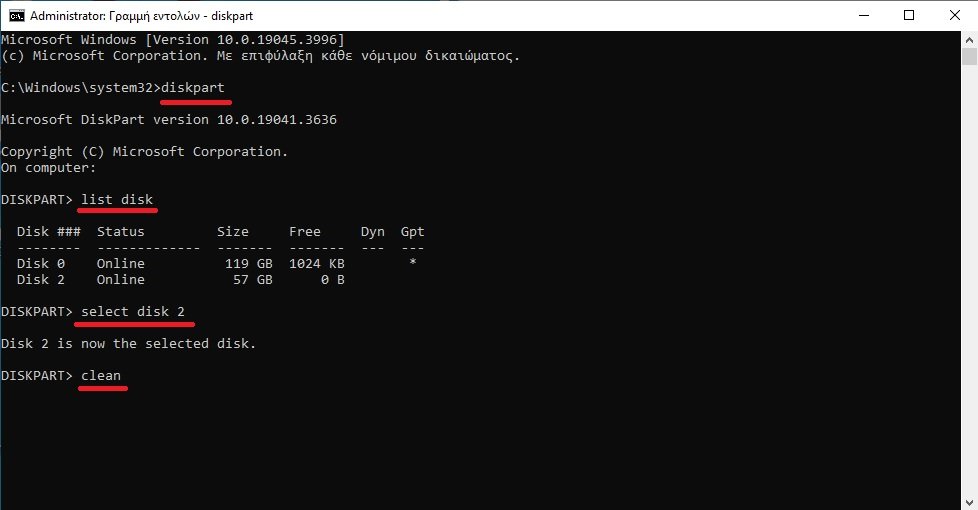
1. In the windows search we write CMD (which is the “line orders")
2. open CMD by right-clicking on it and selecting “run with administrator rights”
3. in the window warningthat opens, select YES
4. having opened the black command line window, type: “diskpart” and press enter
5. type "list disk" and press enter (where we see all the disks on our computer)
6. type "select disk 2" (if our machine has a hard drive, ssd, M2 etc and a usb stick)
7. type "clean" and press enter
8. type "create partition primary" and press enter
9. type "format fs=ntfs" and press enter (there, once the process is finished, you will see a message "DiskPart succeeded in creating the specified partition")
10. type "assign letter=L" (if we want our usb to appear in "this computer", in "file explorer" with the letter L)
11. type "exit" and press enter.
We are ready.
If it seemed complicated to you, we tell you that the time required to do the above is less than 1'