



The latest versions of the program tourς Microsoft Edge (version 91 and later) come with a hidden feature called "Performance Mode".
This new feature is disabled by default and anyone interested should enable it.

Below we will see what this new feature is and how to activate it.
Performance Mode has been developed and implemented in Microsoft Edge to optimize the overall performance of the browser. \
It will help the browser to save battery and minimize the use of system resources (CPU, RAM). Once Performance Mode is enabled, the browser will consume less CPU and RAM resources and put unused tabs to sleep.
You will also notice faster loading time when starting your browser.
Following are the activation instructions
1. Right-click the Microsoft Edge shortcut on the desktop and select Properties. If the Microsoft Edge shortcut is pinned to the taskbar, right-click on it and right-click again on the Microsoft Edge option in the jumplist and select Properties.
If you start Microsoft Edge from the Start menu, copy and paste the following command into the RUN dialog box and press Enter:
%ProgramData%\Microsoft\Windows\Start Menu\Programs
The Programs in File Explorer folder containing the Microsoft Edge shortcut will open. Right-click on it and select Properties.
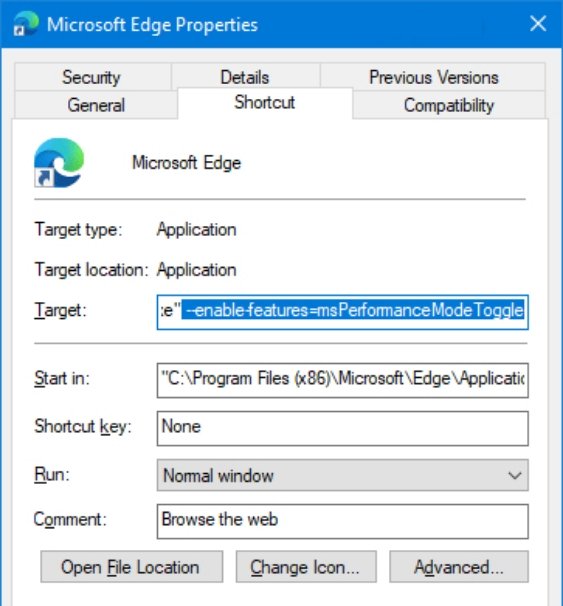
2. Once the Microsoft Edge Properties box opens, add the following command to the Target field:
--enable-features=msPerformanceModeToggle
Remember there should be a gap space between the existing command and the above command you will add.
3. Apply the changes and start Microsoft Edge using the shortcut.
That's it. You have enabled Performance Mode in Microsoft Edge. However, you must enable the feature using the Settings page.
4. Click the 3-dot menu button on the right side of the toolbar and select Settings from the main menu. Alternatively, you can press ALT + F to display the Edge Menu. Then press the S key to open the Settings page.
You can also open the settings page directly using the internal address edge://settings/ in the address bar.
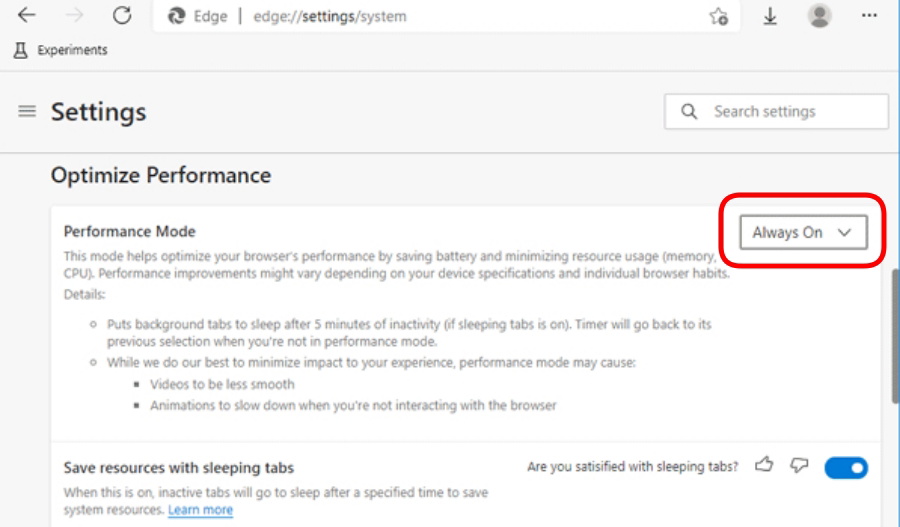
5. On the System tab and in the right part of the window, you will see a new “Performance Mode” option added to the Performance Optimization section.
Select “Always activeFrom the drop-down window next to the selection.
Now that you have Performance Mode enabled in the Microsoft Edge browser, you will notice performance improvements when using the application.
If you decide to turn off Performance Mode, set "Performance Mode" to Always Off in Microsoft Edge settings, or remove the command line parameter from the Target field in the Microsoft Edge shortcut properties.